Your next step
Your net worth beyond Excel, without your own formulas.
A spreadsheet works well while it is easy to maintain. Add several currencies, more accounts and months of history, and updating it can become a project of its own. Capventory fits if you want assets, debts and their history on iPhone, rather than a tool for building any calculation you can imagine.
What changes in your routine
Suppose you record three account balances, cash, a home valuation and the remaining mortgage every month. The source numbers are the same in a spreadsheet and in the app. What changes is the work around them.
| Task | In your spreadsheet | In Capventory |
|---|---|---|
| An update | Add a date and maintain the sheet layout | Save valuations for several positions on one date |
| Multiple currencies | Set up formulas and a source for rates | Fetch rates for the date or enter your own |
| History | Set up ranges and charts | History comes from snapshots; open a point to see its positions |
| Access to your numbers | Work in your chosen spreadsheet editor | Export XLSX for Excel, Numbers or Google Sheets |
Example: assets of 120,000 EUR − debts of 45,000 EUR = net worth of 75,000 EUR.
Net worth is not the same as available cash: some of it may be in your home. If the total rises next month, that alone does not measure your investment return.
How to keep track in Capventory
Start with where you are today
Collect asset values and outstanding debts for one date. There is no need to recreate every purchase and transfer: the journal works with valuation snapshots.
Create positions in their original currencies
Organize accounts, cash, property and debts by category. Enter a home and its mortgage separately so that you do not subtract the same debt twice.
Repeat at a pace that suits you
For example, update several positions together once a month using the same date. You enter the bank balances; the app does not connect to accounts.
Keep a copy of your data
Save a full .capventory backup. Export XLSX to work with numbers in a spreadsheet editor; a file in the supported format can be imported back.
What it looks like on iPhone
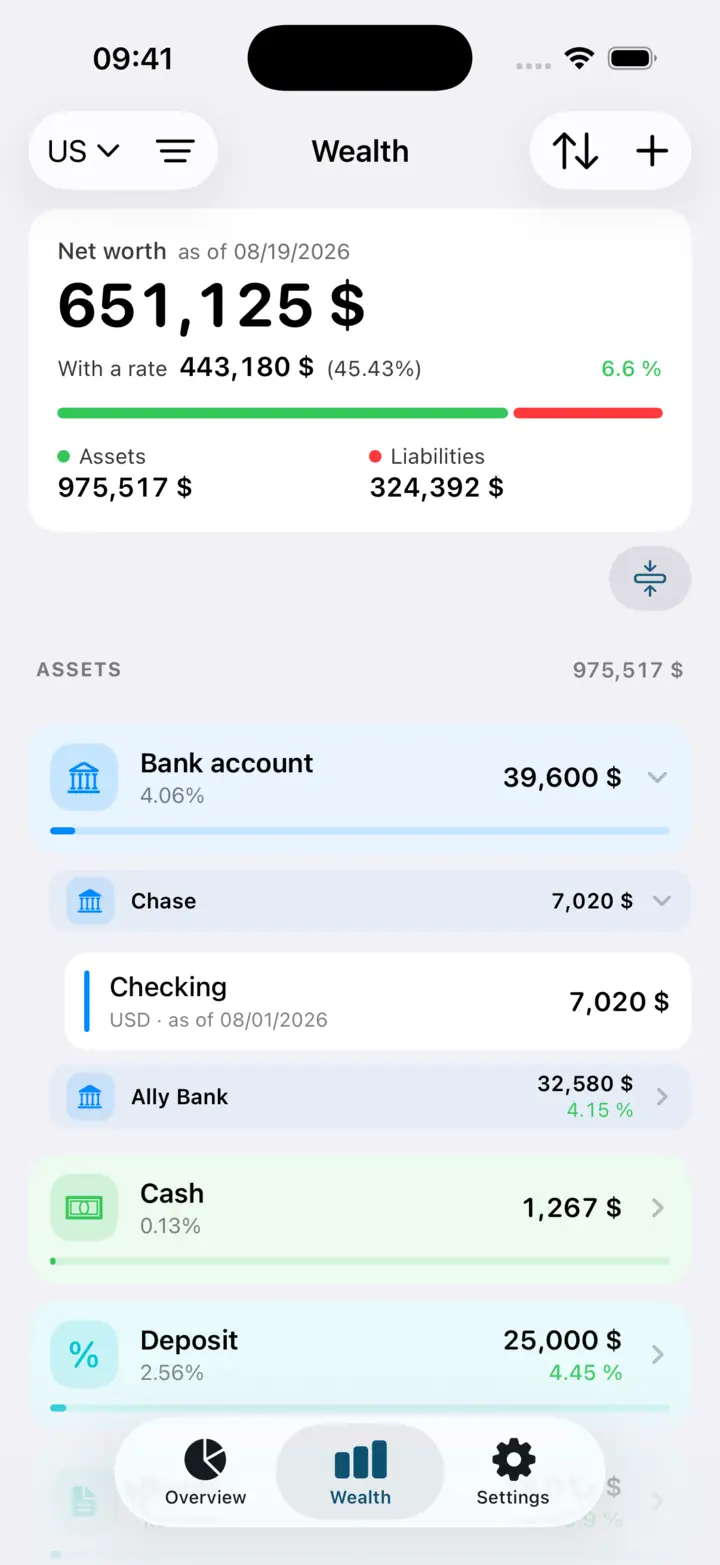
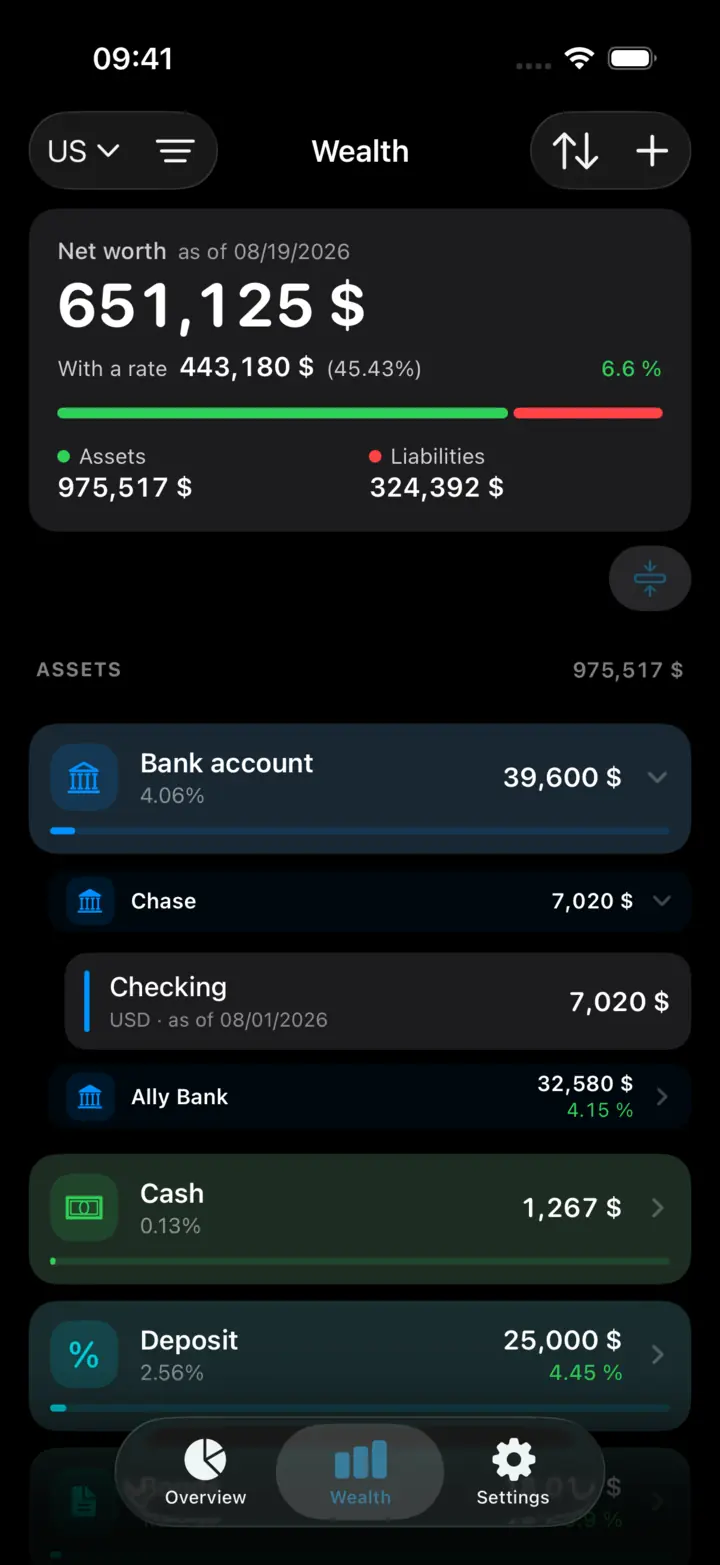
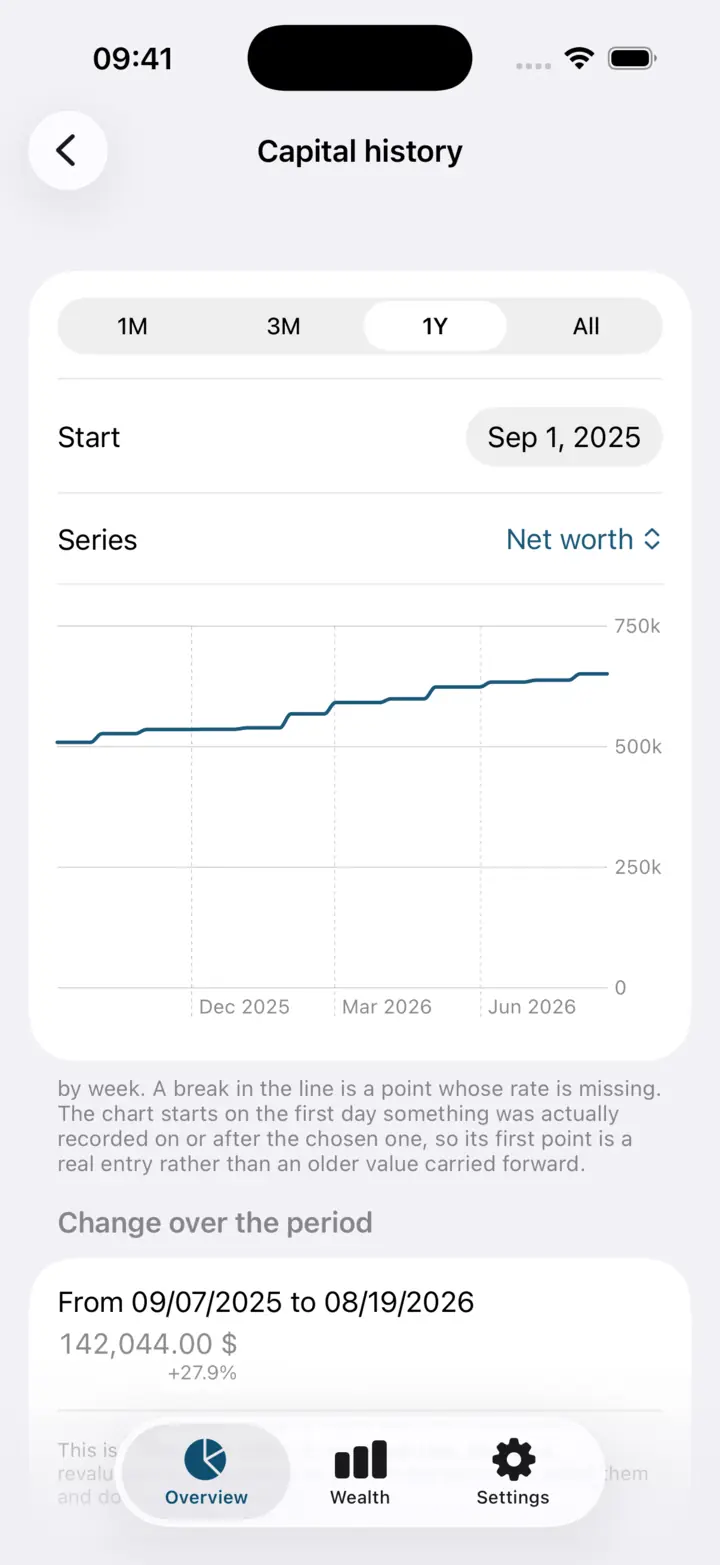
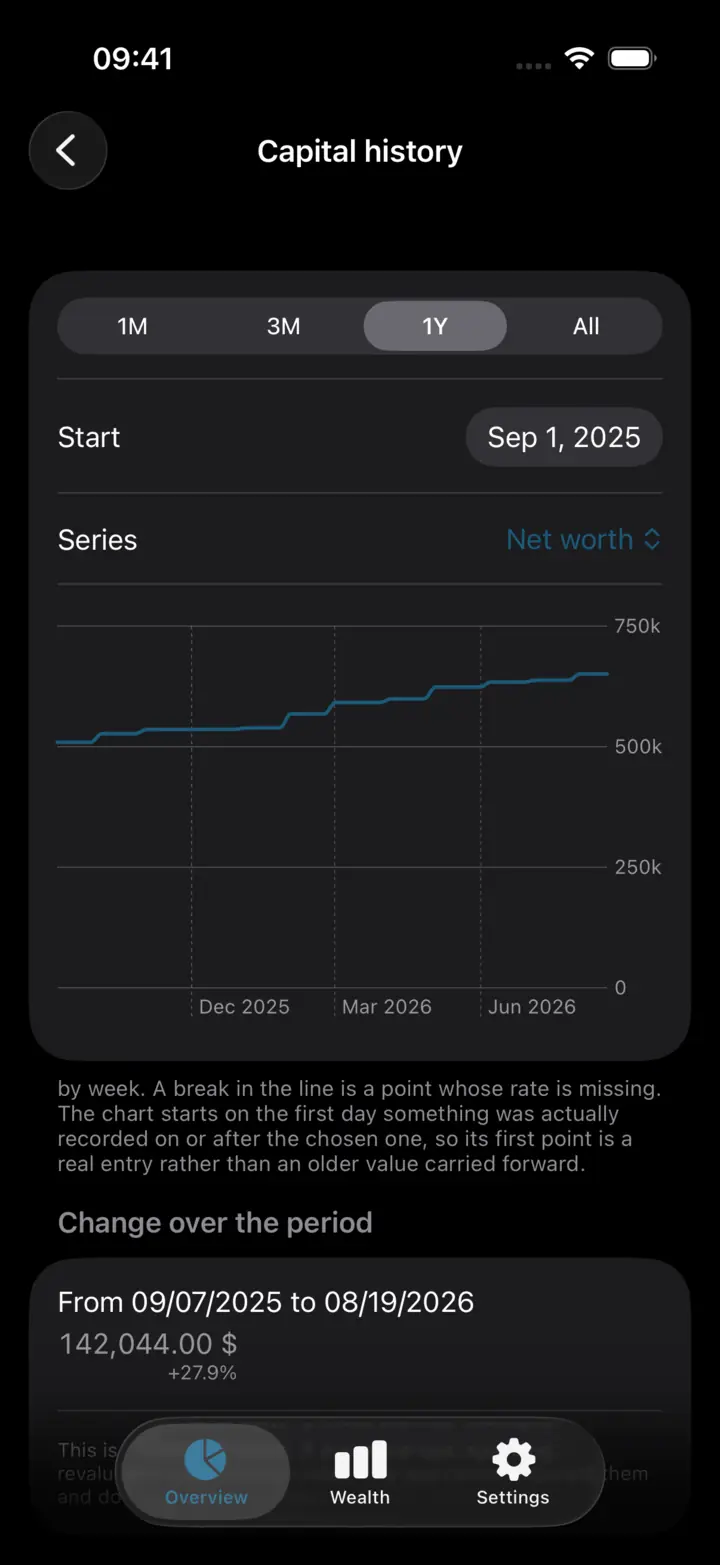
Screenshots show the demo portfolio in the app. Its amounts differ from the illustrative example in this guide.
When a spreadsheet is still the better fit
If you need custom formulas, collaborative editing, browser access or detailed transaction records, a spreadsheet may suit you better. Capventory does not track spending budgets, sync the journal between devices or replace calculations of actual investment returns.
How to move from your existing sheet
The simplest start is to create positions and enter current balances, keeping the old sheet as an archive. Import does not understand arbitrary columns and formulas in any XLSX file. To transfer history, follow the structure of a Capventory export and save a backup of your current data before importing.
Your data stays accessible
The journal lives on your iPhone, without an account or subscription. You choose where to export a backup or spreadsheet. Exported files contain financial data; the .capventory file has no encryption of its own, so keep it somewhere with restricted access.
Before you start
Can I import my Excel sheet in one step?
Only if it follows the supported Capventory format. A custom sheet with your own column names and formulas will not transfer automatically. You can use an XLSX export from the app as the reference structure.
Do I need to record daily spending?
No. You record the state of each position on a date. The journal shows changes in net worth, but does not explain them through purchases, transfers and income.
Can I go back to a spreadsheet?
Yes. An XLSX export opens in Excel, Numbers and Google Sheets. To restore the complete journal with all its settings, keep a .capventory backup too.
Make your next update in a journal
Keep your spreadsheet and start with your current balances in Capventory. Try a new way of keeping track without moving all your history at once.
Download for iPhoneiPhone · iOS 18+ · 63 currencies · no subscription